How to Build Emails That Survive Dark Mode
Dark Mode doesn't just dim your email — it rewrites your colors, inverts your backgrounds, and breaks your layout. Every email client does it differently. Here's what actually happens, with real code and real screenshots.
Includes full HTML source code with annotated Dark Mode techniques
The Problem: One Email, Six Different Dark Modes
There is no Dark Mode standard for email. Apple Mail respects your CSS. Gmail ignores it entirely. Classic Outlook on Windows uses Microsoft Word. Outlook on Mac aggressively inverts your colors. The same email, opened in different clients in Dark Mode, can look different in every one of them.
You cannot control what Dark Mode does to your email in most clients. But you can design defensively, test on real devices, and catch issues before your subscribers do.
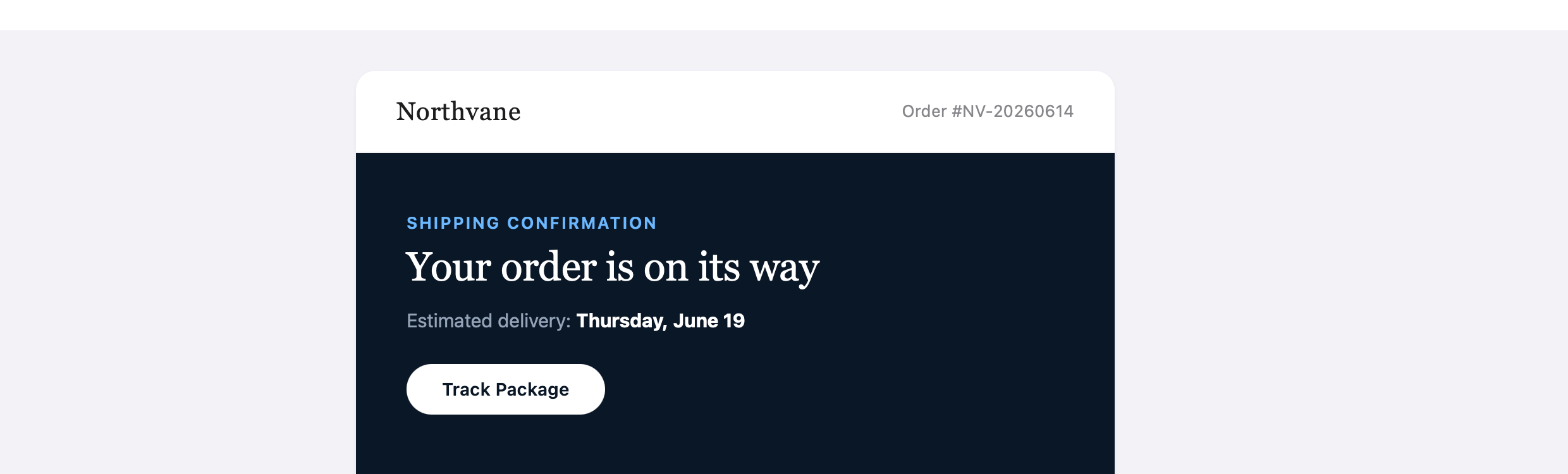
Outlook Mac — Light Mode
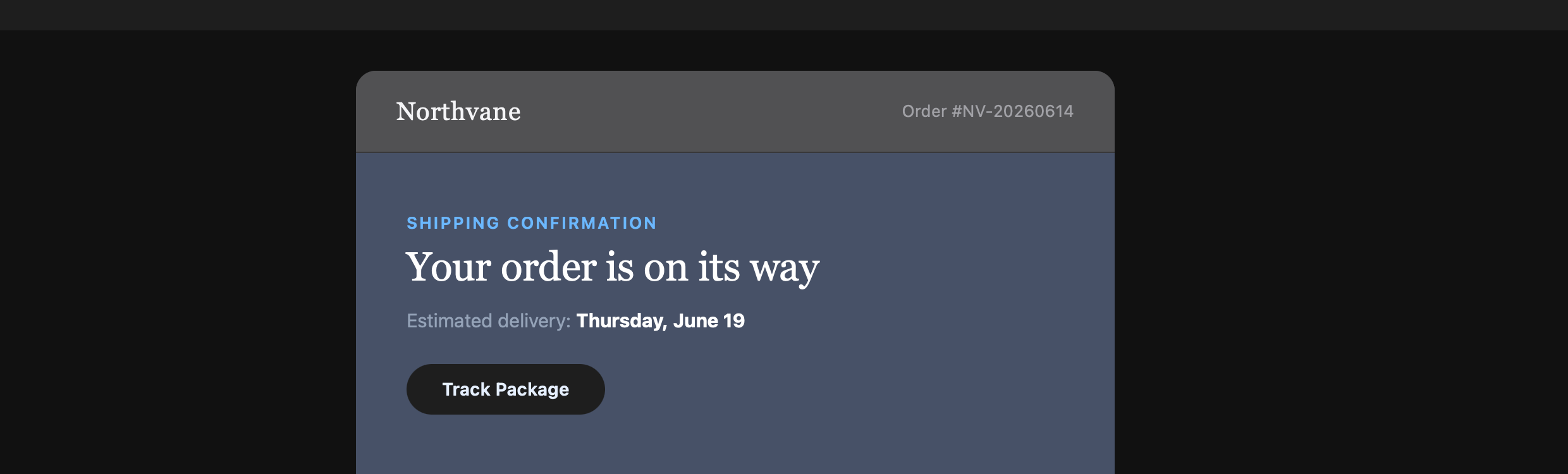
Outlook Mac — Dark Mode (colors inverted)
Same HTML, same email — Outlook Mac's Dark Mode completely changes the hero section.
How Every Major Email Client Handles Dark Mode
This is the single most useful reference for email Dark Mode. Bookmark it.
| Client | Behavior | What Happens |
|---|---|---|
| Outlook Mac | Aggressive inversion | Inverts both background and text colors. Light backgrounds become dark, dark text becomes light. Can make carefully designed sections invisible if your color choices clash after inversion. |
| Outlook Windows (Classic) | Partial inversion | Applies its own Dark Mode layer using the Word rendering engine. Background colors are inverted but images and some inline styles are left untouched, creating contrast mismatches. |
| Outlook Windows (New) | Smart inversion | Built on Outlook on the web, so it handles Dark Mode the way Outlook Web does: it recolors light backgrounds and dark text, and marks what it changed with data-ogsc and data-ogsb attributes you can target. It ignores the MSO conditional comments classic Outlook relies on. |
| Outlook Web | Smart inversion | Attempts to intelligently invert colors while preserving brand identity. Generally less destructive than desktop Outlook, but still alters backgrounds and can shift button colors. |
| Gmail Web | Background inversion | Inverts background colors automatically. Does not respect color-scheme or prefers-color-scheme. Your Dark Mode CSS is completely ignored — Gmail applies its own transformations. |
| Gmail Android | Smart inversion | Uses a "smart" algorithm that tries to preserve your original design intent. Results are unpredictable — sometimes it looks good, sometimes brand colors shift significantly. |
| Gmail iOS | System setting | Follows the iOS system Dark Mode setting. Less aggressive than Gmail Web or Android. Generally respects your email design more faithfully than other Gmail variants. |
| Apple Mail | Color scheme aware | The most standards-compliant client. If you declare color-scheme: light dark, Apple Mail will use your custom Dark Mode styles. If you don't, it auto-inverts with its own algorithm. |
5 Techniques That Actually Work
These are battle-tested techniques used in production emails. Each one includes the actual CSS or HTML you need.
1Declare color-scheme Support
Tell email clients your email supports Dark Mode. Apple Mail and Outlook Mac will respect this and use your custom Dark Mode styles instead of auto-inverting.
<style>
  :root {
    color-scheme: light dark;
    supported-color-schemes: light dark;
  }
</style>
supported-color-schemes is the legacy property — include both for maximum compatibility.
2Write Dark Mode Override Styles
Use @media (prefers-color-scheme: dark) to define custom Dark Mode colors. This works in Apple Mail, Outlook Mac, and Outlook Web. Gmail ignores it entirely.
@media (prefers-color-scheme: dark) {
  .body-bg { background-color: #111111 !important; }
  .card-bg { background-color: #1c1c1e !important; }
  .text-primary { color: #f5f5f7 !important; }
  .text-secondary { color: #a1a1a6 !important; }
  .border-light { border-color: #38383a !important; }
  .promo-bg { background-color: #1a2332 !important; }
  .promo-text { color: #6bb8ff !important; }
}
Use !important on every property — email clients apply their own specificity rules.
3Logo Light/Dark Swap
Show a light logo in Light Mode and a dark-friendly logo in Dark Mode. The trick: hide the dark version by default, then reveal it with the Dark Mode media query.
<!-- Light Mode logo (visible by default) -->
<p class="logo-light" style="color: #1d1d1f;">
  Northvane
</p>

<!-- Dark Mode logo (hidden by default) -->
<div class="logo-dark" style="display: none; max-height: 0; overflow: hidden;">
  <p style="color: #f5f5f7;">Northvane</p>
</div>

/* In your Dark Mode media query: */
.logo-light { display: none !important; }
.logo-dark {
  display: block !important;
  max-height: none !important;
  overflow: visible !important;
}
This pattern works in Apple Mail, Outlook Mac, and Outlook Web. Gmail ignores it — your light logo will show in Gmail Dark Mode regardless.
4VML Fallbacks for Classic Outlook on Windows
Classic Outlook on Windows uses Microsoft Word, which doesn't support CSS gradients, border-radius, or background images. Use VML (Vector Markup Language) wrapped in conditional comments to give Outlook its own version of your hero.
<!--[if mso]>
<v:rect xmlns:v="urn:schemas-microsoft-com:vml"
  fill="true" stroke="false"
  style="width:600px;height:240px;">
  <v:fill type="gradient"
    color="#0a1628" color2="#1a3a5c"
    angle="180" />
  <v:textbox inset="0,0,0,0">
<![endif]-->

<div style="background: linear-gradient(160deg, #0a1628 0%, #1a3a5c 50%, #0d4a3e 100%);">
  <!-- Your hero content -->
</div>

<!--[if mso]>
  </v:textbox>
</v:rect>
<![endif]-->
The <!--[if mso]> conditional is only visible to classic Outlook on Windows. All other clients, including the new Outlook for Windows, see the standard <div> with CSS gradients.
5Defensive Color Choices
Since you can't control Dark Mode in Gmail, design your Light Mode email to survive inversion. Avoid colors that become unreadable when inverted.
Use medium-contrast colors — avoid pure white (#ffffff) backgrounds with light gray text. When Gmail inverts the background to dark, the light gray text may become too dark to read.
Use transparent PNGs for logos — white backgrounds on images create harsh white boxes in Dark Mode. Transparent backgrounds adapt to whatever the client does.
Avoid colored text on colored backgrounds — an amber promo banner with dark orange text can become invisible after inversion. Use high-contrast combinations that survive both modes.
Don't rely on background-color for meaning — if a section is only visually distinct because of its background color (like a promo banner), it will lose its identity when the background is inverted.
Real Screenshots: Dark Mode Across Outlook Clients
We sent the same email to Outlook Mac, classic Outlook on Windows, and Outlook Web. Here's what the promo banner looked like in Light Mode vs Dark Mode on each.
Outlook Mac

Light Mode

Dark Mode
Outlook Windows (Classic)

Light Mode

Dark Mode
Outlook Web

Light Mode

Dark Mode
Three Outlook clients, three different Dark Mode results — from the exact same HTML. Screenshots captured with EmailQA real device rendering.
Full HTML Source Code
Here's the complete HTML email used in the screenshots above. It includes all five techniques: color-scheme declaration, Dark Mode media query overrides, logo light/dark swap, VML fallback for Outlook Windows, and defensive color choices. Copy it, send it to yourself, and see how it renders in your own inbox.
<!DOCTYPE html>
<html lang="en" xmlns="http://www.w3.org/1999/xhtml"
  xmlns:v="urn:schemas-microsoft-com:vml"
  xmlns:o="urn:schemas-microsoft-com:office:office">
<head>
  <meta charset="utf-8">
  <meta name="viewport" content="width=device-width, initial-scale=1">
  <meta http-equiv="X-UA-Compatible" content="IE=edge">
  <title>Your June Order Confirmation</title>

  <!--[if mso]>
  <noscript>
    <xml>
      <o:OfficeDocumentSettings>
        <o:PixelsPerInch>96</o:PixelsPerInch>
      </o:OfficeDocumentSettings>
    </xml>
  </noscript>
  <![endif]-->

  <style>
    /* TECHNIQUE 1: Declare color-scheme support */
    :root {
      color-scheme: light dark;
      supported-color-schemes: light dark;
    }

    /* Responsive breakpoint */
    @media only screen and (max-width: 600px) {
      .mobile-full { width: 100% !important; }
      .mobile-stack {
        display: block !important;
        width: 100% !important;
        padding-left: 0 !important;
        padding-right: 0 !important;
      }
      .mobile-padding {
        padding-left: 20px !important;
        padding-right: 20px !important;
      }
      .hero-heading {
        font-size: 26px !important;
        line-height: 32px !important;
      }
      .mobile-hide { display: none !important; }
    }

    /* TECHNIQUE 2: Dark Mode override styles */
    @media (prefers-color-scheme: dark) {
      .body-bg { background-color: #111111 !important; }
      .card-bg { background-color: #1c1c1e !important; }
      .card-bg-alt { background-color: #2c2c2e !important; }
      .text-primary { color: #f5f5f7 !important; }
      .text-secondary { color: #a1a1a6 !important; }
      .text-tertiary { color: #6e6e73 !important; }
      .border-light { border-color: #38383a !important; }
      .promo-bg { background-color: #1a2332 !important; }
      .promo-text { color: #6bb8ff !important; }

      /* TECHNIQUE 3: Logo swap */
      .logo-light { display: none !important; }
      .logo-dark {
        display: block !important;
        max-height: none !important;
        overflow: visible !important;
      }
    }
  </style>
</head>

<body style="margin: 0; padding: 0; background-color: #f2f2f7;"
  class="body-bg">

<!-- Preheader text (hidden) -->
<div style="display: none; max-height: 0; overflow: hidden;">
  Your order #NV-20260614 has shipped. Track your
  package and view your receipt inside.
</div>

<table role="presentation" width="100%" cellpadding="0"
  cellspacing="0" border="0"
  style="background-color: #f2f2f7;" class="body-bg">
<tr><td align="center" style="padding: 32px 16px;">

<table role="presentation" width="600" cellpadding="0"
  cellspacing="0" border="0"
  style="max-width: 600px; width: 100%;
    background-color: #ffffff; border-radius: 16px;
    overflow: hidden;" class="mobile-full card-bg">

  <!-- NAV: Logo light/dark swap (Technique 3) -->
  <tr>
    <td style="padding: 20px 32px;
      background-color: #ffffff;
      border-bottom: 1px solid #f0f0f0;"
      class="card-bg border-light mobile-padding">
      <table role="presentation" width="100%"
        cellpadding="0" cellspacing="0" border="0">
        <tr>
          <td style="text-align: left;">
            <p class="logo-light text-primary"
              style="margin: 0; font-family: Georgia, serif;
                font-size: 20px; color: #1d1d1f;">
              Northvane
            </p>
            <div class="logo-dark"
              style="display: none; max-height: 0;
                overflow: hidden;">
              <p style="margin: 0; font-family: Georgia,
                serif; font-size: 20px; color: #f5f5f7;">
                Northvane
              </p>
            </div>
          </td>
          <td style="text-align: right;">
            <span class="text-secondary"
              style="font-size: 13px; color: #86868b;">
              Order #NV-20260614
            </span>
          </td>
        </tr>
      </table>
    </td>
  </tr>

  <!-- HERO: VML fallback for Outlook (Technique 4) -->
  <tr>
    <td style="padding: 0;">
      <!--[if mso]>
      <v:rect fill="true" stroke="false"
        style="width:600px;height:240px;">
        <v:fill type="gradient" color="#0a1628"
          color2="#1a3a5c" angle="180" />
        <v:textbox inset="0,0,0,0">
      <![endif]-->
      <div style="background: linear-gradient(160deg,
        #0a1628 0%, #1a3a5c 50%, #0d4a3e 100%);
        padding: 48px 40px;">
        <p style="margin: 0 0 8px; font-size: 13px;
          font-weight: 600; color: #6bb8ff;
          text-transform: uppercase;
          letter-spacing: 1.5px;">
          Shipping Confirmation
        </p>
        <h1 class="hero-heading"
          style="margin: 0 0 12px; font-family: Georgia,
            serif; font-size: 32px; color: #ffffff;">
          Your order is on its way
        </h1>
        <p style="margin: 0 0 24px; font-size: 15px;
          color: #94a3b8;">
          Estimated delivery:
          <strong style="color: #fff;">
            Thursday, June 19
          </strong>
        </p>
        <a href="#"
          style="display: inline-block; padding: 12px 28px;
            background-color: #ffffff; color: #0a1628;
            font-size: 14px; font-weight: 600;
            text-decoration: none; border-radius: 100px;">
          Track Package
        </a>
      </div>
      <!--[if mso]>
        </v:textbox>
      </v:rect>
      <![endif]-->
    </td>
  </tr>

  <!-- ORDER ITEMS with border-radius images -->
  <!-- (border-radius ignored in classic Outlook on Windows) -->
  <!-- ... product rows ... -->

  <!-- PROMO BANNER (Technique 5: Defensive colors) -->
  <!-- Amber bg + dark text = risky in Dark Mode -->
  <tr>
    <td style="padding: 0 32px 24px;"
      class="card-bg mobile-padding">
      <table role="presentation" width="100%"
        style="background-color: #fff7ed;
          border-radius: 12px;
          border: 1px solid #fed7aa;"
        class="promo-bg border-light">
        <tr>
          <td style="padding: 20px 24px;
            text-align: center;">
            <p class="promo-text"
              style="margin: 0 0 4px; font-size: 12px;
                font-weight: 600; color: #c2410c;
                text-transform: uppercase;">
              Loyalty Reward
            </p>
            <p class="promo-text"
              style="margin: 0 0 4px; font-family: Georgia,
                serif; font-size: 20px; color: #9a3412;">
              You've earned $20 off your next order
            </p>
            <p class="promo-text"
              style="margin: 0; font-size: 13px;
                color: #c2410c;">
              Use code <strong
                style="background: #fff; padding: 2px 8px;
                  border-radius: 4px; color: #9a3412;">
                LOYAL20</strong>
              at checkout · Expires Jul 14
            </p>
          </td>
        </tr>
      </table>
    </td>
  </tr>

  <!-- 2-column shipping info -->
  <!-- (stacks on mobile via .mobile-stack class) -->
  <!-- ... shipping details ... -->

</table>
</td></tr>
</table>
</body>
</html>
Want to see how this email actually renders? Try EmailQA free for 14 days — upload this HTML and get real device screenshots in under 60 seconds.
Frequently Asked Questions
Does Gmail support Dark Mode CSS in emails?
No. Gmail strips <style> tags and ignores prefers-color-scheme and color-scheme declarations. Gmail applies its own Dark Mode transformations — different ones on Web, Android, and iOS. You cannot control how Gmail renders your email in Dark Mode; you can only test it and design defensively.
What is color-scheme: light dark in email?
The color-scheme CSS property tells email clients that your email supports both light and dark themes. When declared in your <style> or <meta> tag, clients like Apple Mail will use your custom Dark Mode styles via @media (prefers-color-scheme: dark) instead of auto-inverting colors.
Why does my email look different in Dark Mode on every client?
Each email client implements Dark Mode differently. Apple Mail respects your CSS. Gmail ignores it. Outlook Mac aggressively inverts. Classic Outlook on Windows uses Word rendering, while the new Outlook for Windows behaves like Outlook Web. There is no standard — each client has its own algorithm. The only way to know what your subscribers see is to test on real devices.
How do I prevent Dark Mode from breaking my email?
You can't prevent Dark Mode entirely, but you can design defensively: use transparent images instead of white backgrounds, add dark mode meta tags for Apple Mail, avoid relying on specific background colors for readability, and test on real devices. See the full techniques section above.
Should I design a separate Dark Mode version of my email?
For Apple Mail, yes — you can use @media (prefers-color-scheme: dark) to serve custom Dark Mode styles. For Gmail and Outlook, you can't control their Dark Mode behavior, so focus on making your default design survive inversion. Use EmailQA to preview both modes on real devices.
What happens to images in Dark Mode emails?
Images generally survive Dark Mode untouched — they're raster data, not CSS. However, images with white or transparent backgrounds can look wrong against a dark UI. PNGs with transparency work best. Add a subtle dark border or use images with built-in padding to prevent harsh edges.
How do I test Dark Mode emails without owning every device?
Use EmailQA's real device rendering. Upload your email and get screenshots from Gmail, Outlook, and Apple Mail in both Light Mode and Dark Mode — rendered on actual devices, not simulators. Free 14-day Pro trial, no credit card required.
Does Outlook on Windows support prefers-color-scheme?
Classic Outlook on Windows does not. It uses Microsoft Word as its rendering engine, which has no concept of CSS media queries, prefers-color-scheme, or color-scheme, and applies its own Dark Mode transformation layer that you cannot override with CSS. The new Outlook for Windows is different: it is built on Outlook on the web and handles Dark Mode the way Outlook Web does, so test both versions.